My Honest Experience Building a Tool Website With Zero Coding Background
I am going to be completely transparent with you from the start.
I am not a developer. I do not have a computer science degree. Before this project, I had never built a functional web tool in my life. I run an AI and technology blog, and like most bloggers, I was always looking for ways to make my website more useful — not just another site full of articles.
The idea hit me one night while I was searching for a free word counter tool online. The site I landed on was cluttered with ads, loaded slowly, and barely worked on my phone. I thought: someone needs to build a clean, simple version of this. Then I thought: why not me?
That is when I decided to build my own multi-tool website using Claude AI as my development partner — and I built it entirely on XAMPP on my local computer, without spending a single dollar on hosting.
This is the full story of how I did it, what actually went wrong, and what I learned.
What Is XAMPP and Why I Used It
I have created a Tool website and host it with XAMPP. It has various features which helps you to run a web server privately on your computer. It supports including Apache, MariaDB, PHP, and Perl. Mainly, it turns your laptop or PC into a local web server, by the way, you can build and test websites without purchasing Web hosting.
Three reasons, I chose XAMPP. First, it is completely free to host WordPress website. Second, it allows me to test or practice on different tools before publishing it live. Third, it supports PHP, you know that WordPress is support PHP, so xampp also support PHP.
The XAMPP setup requires 15 minutes to install WordPress and set up a website. You can watch a tutorial on YouTube how to setup it.
Also Read: What Is Vibe Coding? A Beginner’s Guide to Getting Started in 2026
The Tools I Built
After few weeks, Finally I created four free tools website. Each tool was created to focus on real problem that writers, bloggers, and students face on a daily basis. Here is a detailed look at each one.
Tool 1: Duplicate Line Remover
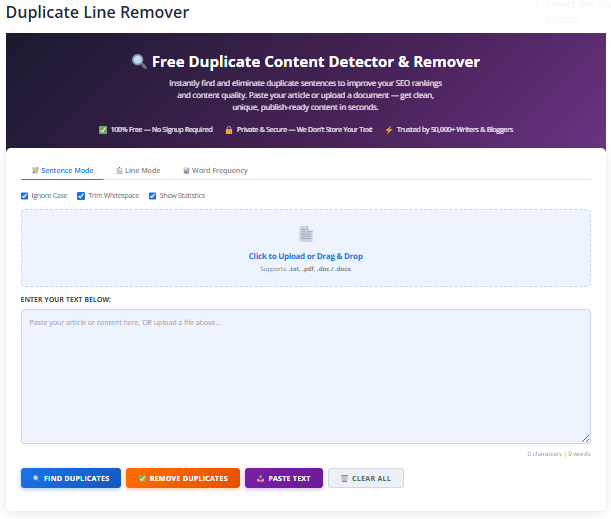
If you are writer or work in office where lots of data is saved in listing format. Sometimes, mistakenly we add duplicate lines, sentences or numbers. Finding them manually takes long time, my tool will help you regarding this.
The Duplicate Line Remover Tool mainly focuses on removing duplicate words, sentences, etc. Paste your text jn the given box and run it. After analysing your text, it gives you a final list of your text.
Who can use this tool?
This tool is useful every uses but especially for SEO professionals managing large keyword lists, data entry workers,bloggers. It saves the time and removes the error that comes with manual checking.
How it works?
The tool check each line of text and removes any line or word that appears more than once. It gives you a clean result after removing duplicate text.
Tool 2: Image to Text Converter (Free)
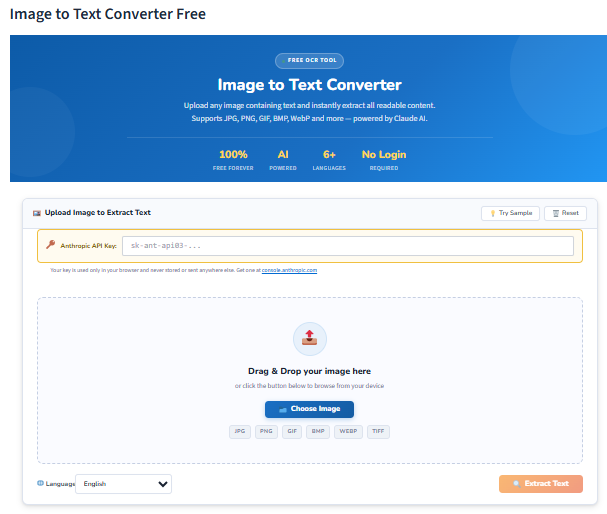
I created one of the most useful tool on my website. This tool can extract text from the image using Optical Character Recognition technology (OCR).
Sometimes, when we receive the image with written text, we become panic and confused how it extract text from image. We manually do it, but this tool is advance tool among the others. You upload your image, and the tool reads it and gives you the text in a copyable format — completely free.
Who can use this tool?
Students or Office workers who need to extract text from scanned documents like reports, letters and images, or students who want to extract text from scanned books, notes and etc. It is also very helpful for journalists, contractors, invoices, researchers and for others.
How it works?
First upload an image via given box, the tool will start process and scans it using OCR technology then identify the text. After that it will show a result where extracted text shows. Now, user can copy and paste it into everywhere.
Tool 3: Plagiarism Highlighter
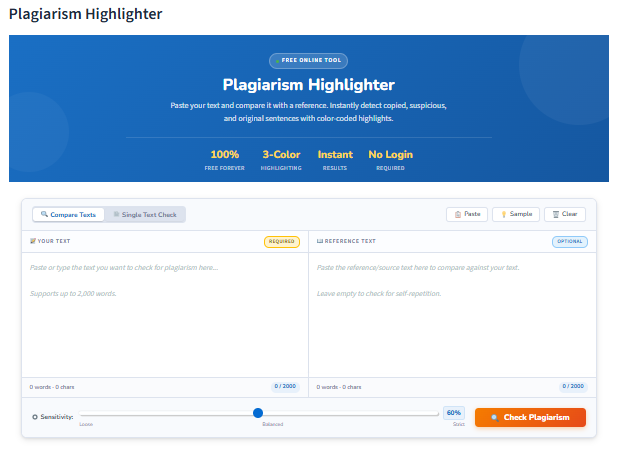
You research a topic for hours, absorb a dozen articles, close all your tabs — and then write what you think is original. But somewhere in that 800-word draft, a phrase slipped through. A sentence that sounds suspiciously like the Forbes article you read at 11pm. You didn’t steal it intentionally. But try explaining that to your professor. Or your client.
I’ve been there. And honestly? That low-grade anxiety before hitting “submit” is the worst.
That’s exactly why the Plagiarism Highlighter exists.
What It Actually Does
No fluff here. You paste your text in, hit the button, and the tool scans your content against existing web sources. Anything that looks too similar — matching phrases, lifted sentences, suspiciously close paraphrases — gets highlighted right there on the screen.
Not buried in a report. Not hidden behind a percentage score you have to decode. Right there, color-coded, so you know exactly which lines need reworking before you publish or submit.
It’s the difference between guessing your draft is clean and knowing it is.
Who Actually Needs This?
Students — You are writing a essay of 3,000 words at midnight. You explore many ways of writing content and ideas by copying the content. One unintentional copy-paste that you forgot to rephrase, and suddenly you’re in academic integrity trouble. Run the check first. Sleep better.
Bloggers and content writers — Google does not reward duplicate content. Period. If a chunk of your article matches something already indexed, your rankings take a hit — even if you wrote it innocently. This tool checks the chunks before going to live.
Teachers and educators — You know that essay that reads a little too polished for a 16-year-old? Yeah. Now you need to verify it properly instead of going on instinct.
Freelance writers — Your clients are paying for original work. That’s the whole deal. Delivering something that partially mirrors an existing article isn’t just embarrassing — it can end a working relationship fast.
How You Can Use It?
- Paste the text in the tool box
- Run the check
- Review the highlighted sections
- Rewrite or paraphrase anything flagged
- Done — publish or submit with confidence
That’s it. No complicated setup. No learning curve. Just clarity where you need it most.
Tool 4: Free Word Counter
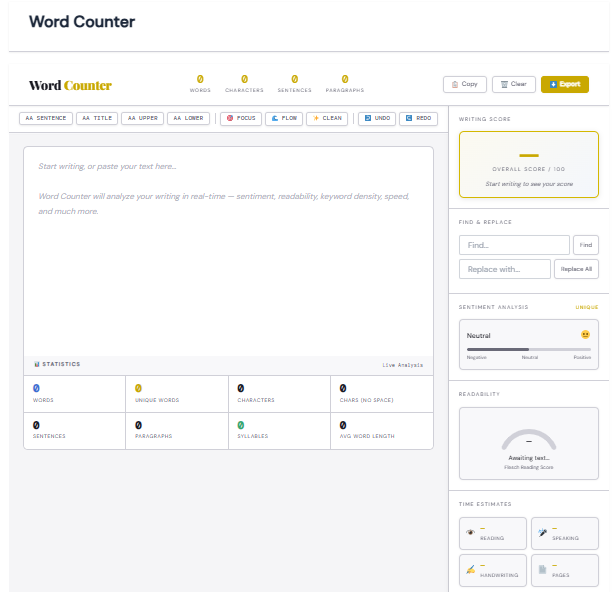
You know well that when you are write 847 words an article, your deadline is in 20 minutes, and you copy and paste in a free online tool that takes long time to load, wast time, and then ads appear which takes more time.
Yeah. I have tired it.
So I built something better.
Why This One Exists
So, I realised that why I should not to create the Word Counter tool? It was the first tool I created. It was the ambitious idea — it is a professional a word counter — but because I was genuinely frustrated with every existing option online.
They’re either too bare-bones (just a number, nothing else useful) or they’re drowning in ads, slow as anything, and somehow still manage to feel unfinished. I just wanted something clean. Fast. That actually worked without fighting it.
So that’s what this is.
What Makes It Different
Here’s the thing — it updates as you type. No button. No reload. No waiting. You paste your text in and the stats appear instantly, like they were always there.
And it doesn’t just count words. It gives you the full picture:
- Total words — the obvious one
- Total characters (with and without spaces)
- Total sentences and paragraphs — surprisingly useful when your writing feels dense
- Estimated reading time — because knowing your reader will spend 4 minutes on your post changes how you write it
- Top keywords — so you can see what your content is actually about, not just what you think it’s about
- Sentiment analysis — is your tone positive? Negative? Neutral? Worth knowing
- Live typing speed — okay this one’s just fun, but also weirdly motivating
- Find & Replace — right there, no switching tabs
- Writing Goal tracker — set a target, watch yourself hit it
- Time estimates — how long to read, how long to speak it aloud
Who can use it?
Bloggers and writers — You’ve got a 1,500-word minimum for that article. Or a 2,000-word sweet spot for SEO.
Students You know the assignment. You know the panic of being at 1,200 and having to cut. This shows you in real time so you’re never surprised.
Social media managers — Twitter’s 280 characters. LinkedIn captions. Instagram bios. Character counts matter more than people admit, and having them live while you write is a small thing that saves a lot of back-and-forth.
SEO writers — Content length is still a real ranking signal. Whether you target 1,000 words or 3,000, know your exact position without interrupting your writing is just… better.
Using It Is Genuinely This Simple
Type. Or paste. That’s it.
Everything updates immediately. No clicks required, nothing to submit. It’s probably the fastest free word counter online right now — and I’m not just saying that because I built it.
The Exact Process I Used With Claude AI
So, most people want to this part. Which is very important to know. So I am going to skip the vague “I used AI to help me” stuff and just show you that how exactly what I did it.Step by step. No mystery.
Step 1: Writing the Prompt
Here’s the thing nobody tells you about working with Claude — the quality of what you get back is almost entirely determined by how well you ask.
Vague prompt? Vague code. Generic, half-finished, needs a ton of fixing.
Specific prompt? Something that actually looks and works like a real tool.
I learned this the hard way on my first couple of attempts. I’d type something like “build me a word counter” and get back… fine code. Functional. But bland. Like a house with no furniture.
So I started being more deliberate. Here’s the actual prompt I used for the Word Counter:
Build me a word counter tool using HTML, CSS, and JavaScript.
The Word Counter tool will give real time update without clicking on the button.
The Tool count:
- No. of words
- No of characters including spaces
- No. of characters including spaces
- No. of sentences
- No. of paragraphs
- An estimated reading time based on 200 words per minute.
I designed this tool with modern look which mainly attract users. It is also mobile friendly tool which works better on mobile version.
See the difference?
I didn’t just describe what the tool should do. I described how it should feel. The layout. The colors. The responsiveness. The behavior.
Step 2: I Tested It in XAMPP
Once Claude wrote a code, I did not overthink it. In XAMPP, I created a new file in htdocs folder main folder like “word-counter” and open it in the browser at localhost/word-counter.html.
No complicated setup. No deployment. Just a quick local test to see if the thing actually worked.
The issues that did come up were almost never about broken logic. It was always the smaller visual stuff — a font size that felt off, spacing that looked weird on mobile, a color that didn’t quite match. Design details, not functionality. And those are easy to fix with a follow-up prompt.
Something like: "The spacing between the stat cards looks too tight on mobile — can you adjust the padding?" And Claude just… fixes it.
Step 3: Give a Feedback and Iterate
When something was not good. I again open the Claude and described the problem. For example:
“The word count is not resetting when I clear the text box. Can you fix that?”
Or:
“On mobile, the stats boxes are overlapping. Please make them stack vertically on screens smaller than 600px.”
Claude fixed each issue quickly. The back-and-forth process felt exactly like working with a real developer — except it was instant and available at 2 AM when I was working on this.
Step 4: Building the Homepage
Once I had multiple tools working, I asked Claude to build a homepage that displayed all of them in a grid layout. I described the style I wanted — card-based design, icons for each tool, short description under each card — and Claude built it in one go.
The Real Challenges I Faced
I want to be honest here because most case studies skip the hard parts. Here is what actually went wrong during this project:
Challenge 1: Vague Prompts Gave Poor Results
My first few attempts with Claude gave me code that technically worked but looked terrible. The layout was basic, the fonts were default browser fonts, and it did not look like something I would trust on a real website.
The problem was my prompts. I was saying things like “make me a word counter” without specifying design details, colours, or layout preferences.
Once I started writing detailed, specific prompts — describing the exact colour scheme, the card layout, the font style, the mobile behaviour — the quality jumped dramatically.
My fix: I now always include a design description in every prompt, even for small tools.
Challenge 2: PHP Tools Required Extra XAMPP Configuration
Two of my tools required PHP to function on the backend, not just HTML and JavaScript. Setting up XAMPP correctly for PHP took me longer than I expected. I ran into issues with file permissions and server configuration.
My fix: I watched two YouTube tutorials specifically about XAMPP PHP setup. After that, the PHP tools worked without any issues.
Challenge 3: Mobile Responsiveness Was Not Automatic
Even when I asked Claude to make the tools mobile-friendly, some elements did not display correctly on smaller screens. Buttons were too small, text overflowed its container, and some stats boxes broke the layout on phones.
My fix: After building each tool, I always opened it on my actual phone to test it. Then I reported the specific issues back to Claude with descriptions like “on iPhone, the stats section shows all four boxes in one row and they are too small to read.” This gave Claude enough context to fix the exact problem.
Challenge 4: No Coding Knowledge Made Debugging Slower
Since I do not know how to code, I could not debug problems myself. Every error required me to copy the browser console error message and paste it back to Claude. Sometimes it takes several rounds of back and forth before the issue was resolved.
My fix: When I face this type of issues I always open the browser developer tools (F12) then copy the exact error message when something broke or went wrong. I write this problem in Claude with exact error message instead of just describing symptoms made the fixes much faster.
My fix: I watched two YouTube tutorials specifically about XAMPP PHP setup. After that, the PHP tools worked without any issues.
Honest Results After Completing the Project
Here is what I actually achieved, without exaggerating:
- Built 3 to 5 fully functional web tools without any prior coding experience
- The entire project took approximately 2 to 3 weeks of part-time work — a few hours each evening
- Total cost: zero dollars — XAMPP is free, Claude AI has a free tier
- I now have a repeatable process for adding new tools in under 30 minutes each
- Two of the tools — the Word Counter and the Keyword Research Tool — I now use personally in my own blog writing workflow
What surprised me most was not how easy it was, but how usable the final tools actually are. I expected something rough and amateur-looking. What I got were clean, functional tools that work well on both desktop and mobile.
I Learned These 6 Things That No One Tell You
- The prompt is the skill. Building with Claude AI is not about coding. It is about describing what you want clearly and specifically. The better you can describe a tool — its function, its design, its edge cases — the better the output.
- Iteration is not failure. I use every tool more than three or four times. This is not a sign that something went wrong. It is the process. Expect to go back and forth. That is normal.
- XAMPP is worth learning. Even if you plan to eventually host your tools on a live server, starting with XAMPP locally is smart. It lets you test freely without worrying about breaking a live site.
- Mobile testing must be manual. Do not assume a tool is mobile-friendly just because Claude says it is. Always open it on your actual phone and check. You will almost always find something to fix.
- Document your prompts. I created a separate text file where I saved every prompts. This saved me enormous time on later tools because I could reuse and adapt previous prompts instead of starting from scratch.
- You do not need to understand the code. I never fully understood the code Claude wrote for me. That is fine. My job was to describe what I needed, test the result, and report problems. The code was Claude’s job.
Who Should Try This
This approach works well for:
- Bloggers who want to add useful tools to their website to attract more organic traffic
- Content creators who want to build a portfolio of free tools without hiring a developer
- Students who want a practical project to showcase without needing a programming background
- Anyone who has a useful tool idea but assumes it is too technical to build
- The only real requirement is that you can clearly describe what you want. If you can explain a tool to another person, you can explain it to Claude.
What I Am Building Next
Now that the process is working, I plan to keep expanding the website. The next tools I want to build include:
- A meta description generator for SEO writers
- A readability score checker for blog content
- A text-to-URL slug converter
- A social media character counter for Twitter, LinkedIn, and Instagram
- Each of these will be built using the same Claude AI process I described above. I set my new goal to built ten tools by the end of 2026.
Conclusion
Building a multi-tool website with Claude AI was the most practical thing I have done for my blog in the past year.
It proved something I now believe strongly in 2026, the barrier to building useful web tools is no longer technical knowledge — it is clarity of vision.
If you know what problem you want to solve and you can describe it clearly, Claude AI can help you build the solution. You do not need to write code. You do not need a computer science degree. You need an idea, a XAMPP setup, and the patience to iterate until it is right.
Leave a comment below — I will answer everyone.